
VEIKK VK1200 V2
4.3Editor score
11.6-inch full-laminated display
8192 pressure sensitivity levels
Two battery-free styluses included
A drawing tablet with screen combines a pressure-sensitive pen, a built-in display, and software-ready controls in one creative workspace. It lets artists sketch directly where the cursor appears, reducing the hand-eye coordination adjustment required by conventional pen tablets while supporting illustration, design, animation, note-taking, and remote presentations.
We compared the ten featured models by examining active area, pressure sensitivity, tilt support, screen construction, color coverage, shortcut controls, portability, stylus design, operating-system support, and included accessories. The guide covers both computer-dependent pen displays and one genuinely standalone tablet, helping readers distinguish between a screen-equipped drawing surface and a self-contained creative computer.
Each selection highlights a different practical strength, from budget-friendly 11.6-inch models to larger workspaces, color-focused displays, and portable standalone devices. Ratings reflect the supplied customer feedback rather than hands-on testing, while specifications and compatibility details are based on the available product information. Market conditions and availability can change, so verify current listings and requirements before buying.
4.3Editor score

4.4Editor score

4.5Editor score
As an Amazon Associate we earn from qualifying purchases.
This side-by-side comparison covers screen size, pressure response, portability, and key controls across all ten picks. The main distinction is between compact computer-connected pen displays, larger professional workspaces, and the standalone RubensTab T11 Pro.




The XP-PEN Artist12 combines an 11.6-inch 1920 by 1080 IPS display with a battery-free stylus and 8192 pressure levels, earning a 4.4 customer rating in the supplied data. Its most compelling feature is the direct drawing experience: the hand, pen, cursor, and artwork occupy the same surface, which can make sketching and detailed editing feel more natural than working on a separate tablet.
We may earn a commission when you buy through this link, at no additional cost to you.
The screen covers 72 percent NTSC, described by the manufacturer as 100 percent sRGB, and includes a preinstalled anti-reflective protector. A programmable touch bar handles zooming and scrolling, while six customizable shortcut keys can be assigned to common drawing or application commands. The hexagonal PN06 pen adds a flexible grip, an end eraser, and eight replacement nibs, making it a flexible companion for sketches, illustration, retouching, and animation.
There are important trade-offs. The Artist12 is a pen display rather than a standalone creative device, and its 1920 by 1080 resolution is not especially generous for detailed work on a 15.6-inch-class screen. The computer also needs suitable video and USB connections, potentially requiring an adapter. Software support is broad, but users should still verify the drivers and workflow requirements of their preferred application before committing.
This is the strongest general recommendation in the guide because it balances a comfortable pen, a compact screen, useful controls, and broad creative compatibility. It is particularly appropriate for students, illustrators, remote presenters, and beginners who want a traditional-looking direct-drawing surface without moving to a larger professional display.
Drawing directly on the display removes the visual separation between a conventional pen tablet and monitor. That immediacy can be especially helpful for line work, lettering, retouching, and teaching because the pen tip remains close to the visible cursor.
Six customizable keys, a touch bar, a pen holder, a glove, and replacement nibs create a more complete working package. The programmable controls let users place frequently used functions close to the drawing hand.
We may earn a commission when you buy through this link, at no additional cost to you.
The VEIKK VK1200 V2 delivers an 11.6-inch full-laminated IPS display, 8192 pressure levels, and 60-degree tilt recognition, with a 4.3 customer rating. It stands out as a budget-minded pen display because the laminated construction and single-cable USB-C workflow address common usability problems without introducing a complicated setup.
We may earn a commission when you buy through this link, at no additional cost to you.
Full lamination reduces the visible gap between the glass and display, supporting more accurate cursor placement and a more direct drawing sensation. The included battery-free pens avoid charging interruptions, while six programmable shortcut keys can be tailored to different applications. Connectivity can be as simple as one full-featured USB-C cable when the computer supports data, power, and DisplayPort over that connection.
The screen has 1920 by 1080 resolution and 72 percent NTSC color gamut, so it is better suited to general creative work than demanding color-critical production. The tablet must be connected to a computer, and users with older ports will need the included HDMI and USB-A-to-C alternatives. It supports Windows, macOS, and Linux, though the exact driver behavior should be checked against the chosen software.
The VK1200 V2 is recommended for students, hobbyists, and emerging illustrators who want a portable, direct-drawing device with modern construction. It may not satisfy a color specialist looking for wide-gamut output, but it offers one of the most balanced and uncomplicated ways to begin using a screen-equipped drawing tablet.
The full-laminated glass helps reduce parallax between the pen tip and cursor. It is especially noticeable during fine line work, small interface selections, and tasks that require accurate placement over the displayed image.
A single USB-C cable can carry data, power, and video on compatible systems. Alternative included cables broaden compatibility with computers that do not expose the required USB-C functions.
We may earn a commission when you buy through this link, at no additional cost to you.
The GAOMON PD1161 is an 11.6-inch Full HD pen display with a 4.3 rating, 8192 pressure levels, and tilt support. Its distinguishing feature is control density: eight side shortcut keys and two programmable pen buttons give users more ways to reach common tools than many similarly compact models.
We may earn a commission when you buy through this link, at no additional cost to you.
A preinstalled matte film reduces glare and reflections while preserving the familiar impression of sketching on paper. The display uses 72 percent NTSC coverage, also described as 100 percent sRGB, and supports 16.7 million display colors. That makes it a practical choice for illustration, image editing, design, note-taking, mind mapping, online education, and collaborative work.
It is not a standalone tablet and cannot create artwork without a connected computer. The system needs compatible video and USB connections, and some laptops may not provide enough power without the included power adapter. While the matte treatment improves glare, it may also make the surface feel slightly different from premium glass displays.
The PD1161 suits users who value efficient keyboard-free operation and want a generous set of programmable controls. It is a particularly sensible option for students and working illustrators who frequently switch tools, but buyers should confirm that their computer has the required ports and that their preferred application recognizes the driver.
Eight shortcut keys and two pen buttons can reduce repeated mouse movements or keyboard combinations. This is particularly useful for switching layers, changing brushes, undoing actions, and navigating art software.
The AP50 battery-free pen includes tilt recognition, while the matte screen treatment helps limit distracting reflections. Together, they create a practical setup for prolonged sketching, annotation, and design sessions.
We may earn a commission when you buy through this link, at no additional cost to you.
The Artisul D16 uses a large 15.6-inch 1920 by 1080 full-laminated display and carries a 5.0 customer rating in the supplied information. It is the most expansive canvas in this guide, offering more room for illustration, animation, image editing, teaching, and side-by-side design work.
We may earn a commission when you buy through this link, at no additional cost to you.
The P58B battery-free stylus provides 8192 pressure levels and a stated 223 PPS reading rate. Screen color coverage is listed at 76 percent Adobe RGB, with anti-glare treatment intended to reduce scratches and reflections. Seven programmable hotkeys and a quick dial provide an efficient control surface, while brightness adjustment and an adjustable stand improve comfort during extended sessions.
The important qualification is that this listing describes a refurbished tablet. Refurbished status can be attractive for obtaining a larger, feature-rich pen display, but buyers should examine the condition disclosure, included accessories, warranty coverage, and return terms carefully. The device also requires a computer and works with Windows 7 or later and macOS 10.12 or later.
The D16 is best for illustrators, animators, designers, and educators who want a roomy desktop drawing surface without moving to the size of a conventional monitor. The larger active area can make canvas navigation and detailed work more comfortable, though the refurbished status and required computer setup should be weighed before purchase.
A 15.6-inch display gives artists a broader workspace for complex illustrations, timelines, reference images, and editing palettes. The larger surface can reduce the need to zoom frequently, although screen resolution remains 1920 by 1080.
The adjustable stand supports six angles, while brightness controls and an anti-glare film help adapt the display to different rooms. The dial and hotkeys support faster changes to brush size, scrolling, and undo operations.
We may earn a commission when you buy through this link, at no additional cost to you.
The HUION Kamvas 13 (Gen 3) combines a 13.3-inch fully laminated display with 16384 pressure levels, dual dials, and a stated average Delta E below 1.5, reflecting its emphasis on display quality. Its 4.5 customer rating makes it a strong choice for users who care about color consistency, nuanced pen control, and a refined professional workflow.
We may earn a commission when you buy through this link, at no additional cost to you.
Canvas Glass 2.0 provides anti-sparkle treatment, reduced glare, and improved accuracy. The display offers 16.7 million colors, 99 percent sRGB coverage, and Rec.709 gamut support, along with a factory calibration report. PenTech 4.0 adds 2g IAF, a low initial activation force, while three side buttons and a 2g response help create fluid lines and shading.
This is still a computer-dependent pen display, so compatibility is essential. It supports Windows 10 or later, macOS 10.12 or later, Linux Ubuntu 20.04 LTS, and compatible Android devices with USB 3.1 Gen 1 and DisplayPort 1.2. Its more advanced display technology and controls place it above the entry-focused options, making careful system planning worthwhile.
The Kamvas 13 is recommended for illustrators, designers, animators, and other creative professionals who want a compact yet color-focused workspace. It is the premium pick because it integrates a larger glass display, advanced pen technology, accurate color specifications, dual physical dials, and a streamlined USB-C connection in a 13.3-inch format.
The 99 percent sRGB coverage, Rec.709 support, 16.7 million colors, and factory calibration report make this display more appropriate for color-sensitive workflows than basic pen monitors. The stated Delta E figure also gives buyers a clearer expectation of color consistency.
Two physical dials can be assigned to frequently used functions such as zooming, brush sizing, or navigation. Combined with five programmable shortcut keys, they reduce reliance on the keyboard during focused creative work.
We may earn a commission when you buy through this link, at no additional cost to you.
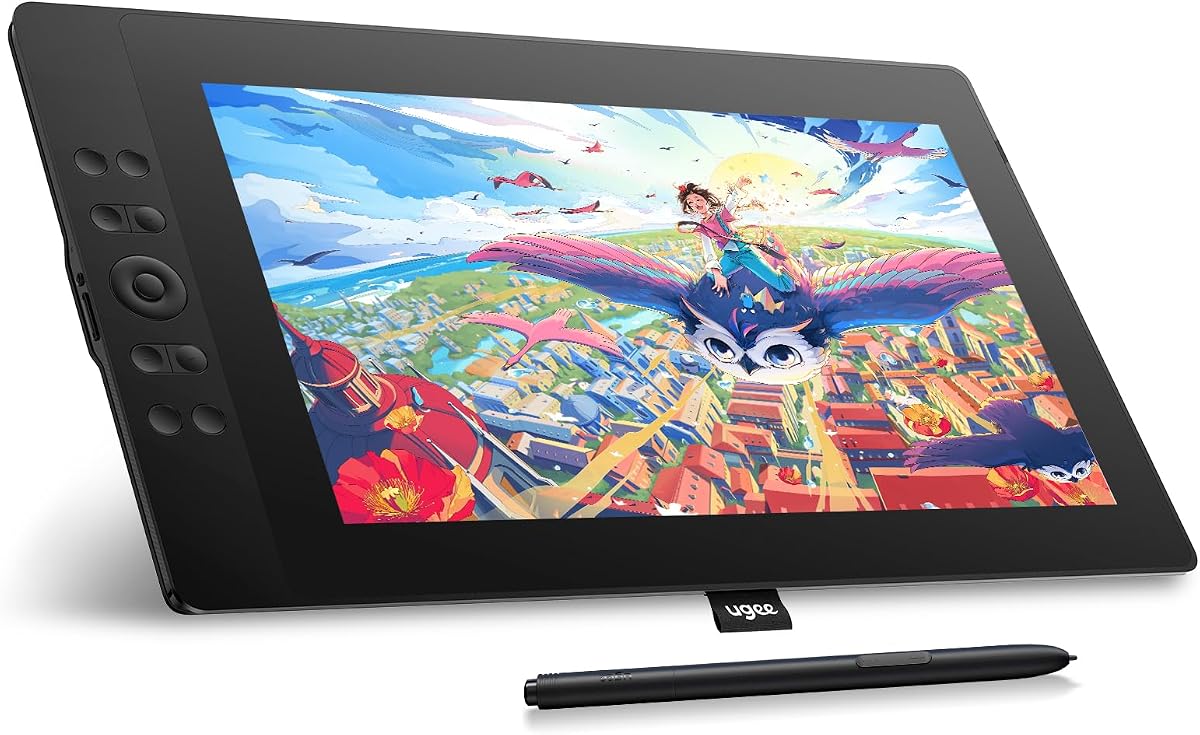
The UGEE UE16 offers a large 15.4-inch full-laminated display, 16K pressure sensitivity, and a stated 143 percent sRGB color gamut, earning a 4.5 customer rating. It stands out for users who want to switch among sRGB, Adobe RGB, DCI-P3, and monochrome display modes within the same hardware.
We may earn a commission when you buy through this link, at no additional cost to you.
Its 8-bit color depth and 16.7 million displayed colors support a broad visual range, while the U-Pencil includes two customizable buttons and a pressure-sensitive eraser. Eight physical shortcut keys and a wheel with four preset functions make common actions more accessible. The full-laminated surface supports accurate interaction and a reduced parallax effect.
Compatibility is notably broad, covering Windows 7 or later, macOS 10.12 or later, Chrome OS 88 or later, Android 9 or later, and Linux. Popular applications including Photoshop, Illustrator, SAI, ibisPaint X, and MediBang are listed as compatible. The 3-in-1 cable is packed separately, so buyers should confirm that it arrives in the parcel and that their computer supports the required connection mode.
The UE16 is a strong recommendation for designers, illustrators, and students who value a large surface and flexible color-space selection. Its 15.4-inch body is less convenient for compact workspaces than the 11.6-inch alternatives, but it offers more room for detailed artwork and on-screen tools.
Switching among sRGB, Adobe RGB, DCI-P3, and Black & White modes can help users compare working spaces or simplify monochrome tasks. The feature is particularly appealing for illustrators and designers who regularly move between digital and print-oriented workflows.
The 15.4-inch display creates room for illustration, reference material, and interface panels. Eight shortcut keys, a multifunction wheel, and pen-side controls put frequently used tools within reach during detailed sessions.
We may earn a commission when you buy through this link, at no additional cost to you.
The VEIKK VK1200 is an 11.6-inch LED pen display with 1920 by 1080 IPS resolution, 8192 pressure levels, tilt support, and a 4.2 customer rating. It is designed as an approachable option for artists, students, and beginners who want direct-on-screen drawing and a generous collection of basic accessories.
We may earn a commission when you buy through this link, at no additional cost to you.
Two battery-free pens are included, along with 28 replacement nibs and a pen holder. The six shortcut keys are assigned to common actions such as undo, redo, clearing, zooming, and brush selection. A soft artist glove helps keep the drawing hand from resting directly on the display, reducing unwanted contact and smudging.
Its color gamut is listed at 72 percent NTSC, which is suitable for learning, general illustration, and everyday design but not ideal for demanding color-critical work. The display is a traditional computer-connected pen display, and the product information does not describe the same full-lamination or single-cable arrangement featured by the VK1200 V2.
The original VK1200 remains a viable starter choice when its accessory package and basic feature set are the priority. It is best for new users, students, and casual creators who want two pens, spare nibs, a glove, and straightforward shortcut controls in a compact drawing surface.
Two pens and 28 replacement nibs allow users to keep a spare stylus close and experiment with different line behaviors. The pen holder and artist glove make the package practical for immediate use.
The six shortcut keys cover common actions such as undo, redo, zoom, and brush selection. This keeps basic navigation available without requiring the user to move a hand to the keyboard.
We may earn a commission when you buy through this link, at no additional cost to you.
The RubensTab T11 Pro is the only truly standalone option in this roundup, using a 10.1-inch 1920 by 1200 IPS display with no external computer required. Its 4.4 customer rating and self-contained design make it the natural choice for travelers, students, and artists who need to create away from a desk.
We may earn a commission when you buy through this link, at no additional cost to you.
A pressure-sensitive battery-free pen supports fluid drawing, while multi-touch provides zooming, panning, and scrolling. The built-in 5800mAh battery is stated to deliver up to five hours of continuous use and can be recharged through USB-C, including with a mobile power bank. Preinstalled drawing applications make the device more approachable than a blank computer-connected display.
Standalone does not mean equally powerful or compatible with every professional application. The 10.1-inch screen is smaller than the computer-connected models, and users must work with the software and operating environment provided on the device. Its primary appeal is portability and independence rather than access to a full desktop ecosystem.
The T11 Pro is recommended for sketchers, note-takers, students, and meeting users who want a self-contained digital canvas. Choose it over a pen display when mobility, battery operation, and immediate access to built-in apps matter more than large-screen precision or integration with desktop creative software.
The internal battery and preinstalled applications remove the need to pair the device with a laptop, find a compatible display cable, or install a driver before sketching. Powering on and opening a drawing app creates a much simpler path to immediate use.
The included adjustable stand case serves both a protective and ergonomic role. It keeps the device supported at a comfortable viewing angle while helping protect it during transport between classes, meetings, and travel locations.
We may earn a commission when you buy through this link, at no additional cost to you.
The VEIKK VK1200V2 combines a full-laminated 11.6-inch IPS display with an upgraded 16,384-level stylus, 60-degree tilt support, and a stated 290 PPS reading rate. Its 4.2 rating reflects a pen display that prioritizes responsive line control, accurate cursor placement, and broad cross-platform support.
We may earn a commission when you buy through this link, at no additional cost to you.
The 120 percent sRGB listing differentiates its color capability from the more basic 72 percent NTSC models in the guide. Two P05 passive styluses are included, and there is no battery to charge. Six customizable hotkeys can handle functions such as erasing, zooming, brush-size changes, and layer switching through the driver.
The screen resolution is 1920 by 1080, and the display still requires a computer. It supports Windows, Linux, and macOS 10.12 or later, along with major creative applications such as Photoshop, SAI, Illustrator, SketchBook, Painter, Comic Studio, ZBrush, and Maya. The full-metal anti-slip back cover and stated weight of 1.78 pounds support its portable positioning.
The VK1200V2 is a good middle ground for users who want a finer pressure range than the standard VK1200 without moving to a larger premium display. It suits illustrators, comic artists, and students who want a portable full-laminated surface with two pens and broad software compatibility.
The 16,384 pressure levels and 60-degree tilt support provide a broad control range for line weight, shading, and texture. The stated 290 PPS reading rate is also intended to support smooth tracking during fast strokes.
The metal back cover uses an anti-slip surface and keeps the unit relatively light for its screen size. Full lamination reduces parallax, helping the visible cursor align more closely with the pen tip.
We may earn a commission when you buy through this link, at no additional cost to you.
The XP-PEN Artist 12 Pro Lite offers an 11.6-inch fully laminated IPS display, 8192 pressure levels, 60-degree tilt support, and a 4.4 customer rating. Its defining convenience is the 3-in-1 cable design, which is intended to simplify connection without requiring a separate adapter.
We may earn a commission when you buy through this link, at no additional cost to you.
The display provides 1920 by 1080 resolution and a stated 178-degree viewing angle. A programmable red dial sits near the drawing area, while eight shortcut keys provide additional customizable functions. The stylus supports natural tilting for shading and changing brush direction, and the full-laminated surface helps minimize parallax and create a paper-like interaction.
The computer remains essential for normal creative use. The device supports Windows 7 or later, macOS 10.10 or later, Chrome OS 88 or later, and Linux, with stated compatibility across Photoshop, Illustrator, SAI, CorelDRAW, GIMP, Krita, MediBang, FireAlpaca, and Blender 3D. Users should verify their computer's physical ports and the included cable arrangement before purchase.
The Artist 12 Pro Lite is recommended for creators who prioritize a streamlined connection, a comfortable physical dial, and a compact laminated workspace. It also works well for annotation during classes, meetings, presentations, and live streams, where sharing the screen can make explanations more visual.
The 3-in-1 design consolidates the necessary connection functions into a single cable. This can reduce desk clutter and make it easier to move the display between a home desk, studio, classroom, or shared workspace.
The red dial can be programmed for common adjustments, while eight shortcut keys offer additional touch-free access to tools. These controls are particularly useful during demonstrations when moving to a keyboard would interrupt the presentation flow.
We may earn a commission when you buy through this link, at no additional cost to you.
The most useful drawing tablet with screen is not determined by screen size alone. Consider how you will work, which software you use, whether portability matters, how accurately the pen interacts with the display, and whether you need a standalone device or a computer-connected pen display.
Choose standalone if mobility and independence are your priority. Choose a computer-connected display if you use Photoshop, Illustrator, Blender, or other established desktop applications.
Choose 11.6 inches for portability, 13.3 inches for a balanced professional workspace, and 15 inches for maximum room.
Prioritize supported tilt, reliable tracking, and smooth pressure over treating the highest pressure count as the only quality measure.
Choose full lamination for accuracy, or a matte treatment when reduced glare and a paper-like feel are the priority.
Check color coverage for design work, but also confirm that the resolution suits your screen size and viewing habits.
Prioritize programmable controls you can comfortably reach and assign to genuinely frequent actions.
For fast sketching, prioritize smooth tracking and low perceived delay rather than pressure-count marketing alone.
Confirm software, ports, power, and accessories before buying; a compatible setup is essential for a smooth first session.
Begin by placing the display on a stable surface and positioning it so the active area is directly in front of you rather than to either side. Connect the supplied data and video cables, install the appropriate driver, and confirm that the operating system detects the tablet. For a standalone model, charge the device, power it on, and open one of the preinstalled drawing applications. Adjust the screen brightness, stand angle, and shortcut assignments before beginning a detailed project.
In your creative application, set the pen input area to the full display when possible, then test a series of light, medium, and heavy strokes. Verify that pressure produces changing line widths, that tilt affects the intended brush behavior, and that the cursor follows the pen without visible lag. Practice using the dial or wheel, shortcut keys, pen buttons, and eraser so that each control becomes part of the natural workflow rather than something that interrupts the drawing process.
Protect the active surface by using the supplied film, glass protector, or compatible screen cover whenever possible. Keep replacement nibs available, clean the glass with a soft lint-free cloth, and avoid abrasive or harsh chemical cleaners. Store the tablet in its case or on a protected shelf, and do not press unnecessarily hard on the screen. Battery-free pens require no charging, but a standalone tablet should be recharged regularly to maintain dependable battery performance during long sessions.
Most do not. The XP-PEN, VEIKK, GAOMON, Artisul, HUION, UGEE, and Artist 12 Pro Lite models are pen displays that must be connected to a compatible computer. The RubensTab T11 Pro is the exception in this guide because it is a standalone device with a built-in operating system, preinstalled applications, and an internal battery. Always check the product listing before assuming a screen-equipped tablet is self-contained.
Full lamination is generally better for cursor accuracy because it reduces the visual gap between the pen tip and the pointer. This can make detailed drawing and small interface selections feel more immediate. A matte or non-laminated surface may offer a more paper-like sensation and effective glare reduction, so the ideal choice depends on whether precision, realism, or reduced reflections matters more in your work.
For the 11.6-inch models in this guide, 1920 by 1080 is a common working resolution and is generally sufficient for illustration, sketching, annotation, and design. Larger screens may make individual pixels more noticeable at close viewing distances, even though the extra active area supports more detail on screen. Artists who work with very fine textures should test viewing comfort rather than assuming a larger diagonal size automatically creates a better experience.
No. The included 8192-level range remains useful for many creative tasks, especially when supported by reliable pen tracking and a responsive display. Models offering 16384 levels or 16K sensitivity can provide finer control increments, but the visible difference depends on application support, technique, and display responsiveness. A well-calibrated 8192-level pen may feel more consistent than a higher-numbered pen that does not suit the user's workflow.
Yes, when the computer-connected model is configured as an extended or mirrored display and the application supports screen sharing. The XP-PEN Artist12 and Artist 12 Pro Lite are explicitly highlighted for classes, meetings, live streams, and presentations. Features such as a direct writing surface, programmable controls, and screen sharing make it easier to demonstrate concepts, annotate documents, and let viewers watch work happen in real time.
Battery-free styluses remove charging interruptions and are generally simpler for continuous creative work. Every featured stylus option is described as battery-free, including the standalone RubensTab's pressure-sensitive pen. Rechargeable pens can sometimes offer additional features such as programmable displays, but no such benefit is listed for these models. For the products compared here, the absence of a pen battery is a practical convenience.
The compact 11.6-inch pen displays are the most travel-friendly computer-connected choices, while the RubensTab T11 Pro is the most independent because it runs from its internal battery. The T11 Pro has a smaller 10.1-inch screen, however. Artists who need maximum screen area may prefer a 15.4- or 15.6-inch model and accept the larger footprint, or choose a compact display and use a protective case for transport.
Check the computer's operating system, video and USB ports, available power, and compatibility with your creative software. Also consider screen resolution and size, laminated versus matte construction, pressure and tilt support, shortcut customization, stylus accessories, and whether the device is standalone. The included 3-in-1 or USB-C cable may not work with every computer without suitable ports or an adapter, so verify the connection plan before ordering.
The XP-PEN Artist12 is the strongest all-around recommendation for its compact direct-drawing format, comfortable battery-free pen, programmable touch bar, shortcut keys, and broad creative compatibility. The VEIKK VK1200 V2 is the best budget-oriented choice because it combines full lamination, tilt support, two styluses, and a convenient USB-C workflow, while the HUION Kamvas 13 (Gen 3) is the premium option for color accuracy, 16384-level pressure, dual dials, and a refined 13.3-inch display.
For most buyers, prioritize compatibility and direct pen accuracy before display size. Full lamination, a responsive battery-free stylus, useful shortcut controls, and a comfortable stand can improve daily work more than a larger screen with unsuitable ports. Choose the 15.4- or 15.6-inch models for expansive artwork, the 11.6-inch options for a balanced desk footprint, and the RubensTab T11 Pro only when complete independence from a computer is essential.
Ratings, bundle contents, driver support, and product availability can change over time, so review the current listing before purchasing. Confirm the active area, pressure system, tilt behavior, color specifications, connection requirements, operating-system support, warranty, and included accessories. With those details checked, one of these ten models can provide a practical and enjoyable path into screen-based digital creation.